
Map view for Geospatial projects
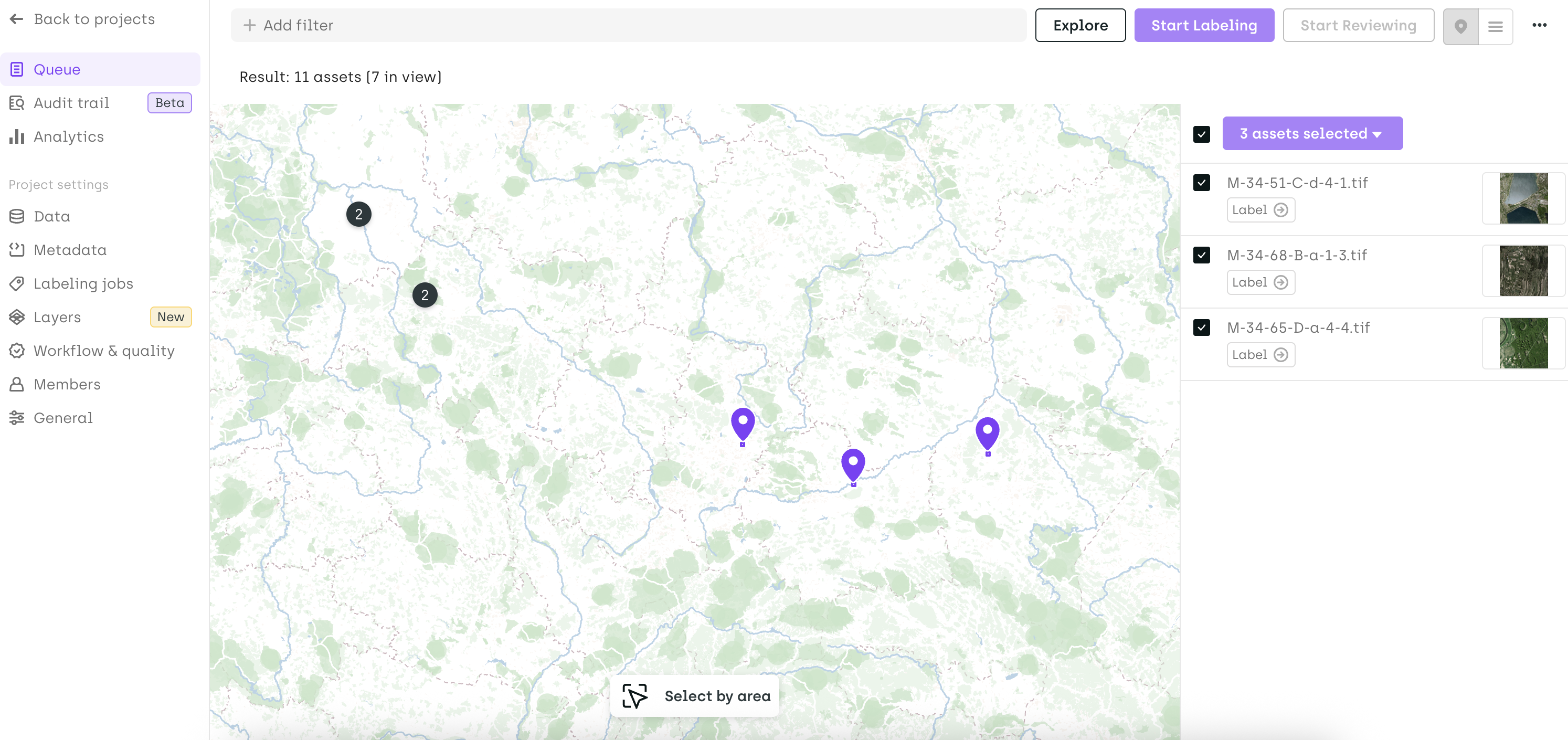
The Map View provides a spatial way to explore and manage your geospatial assets. Instead of browsing assets in a list, you can visualize them directly on a map based on their geographic bounds—making it much easier to understand coverage, organize work, and take action efficiently.
Why use the Map View?
The Map View is designed to support geography-driven workflows. It’s especially useful when location matters for labeling, reviewing, or managing assets.
Typical use cases include:
-
Locate specific targets geographically
Combine map visualization with filters to quickly find assets containing a specific label or category in a given region. -
Optimize task assignment
Assign assets to team members based on geographic expertise or operational zones. -
Prioritize regions
Focus efforts on high-priority areas by visually identifying and selecting assets in those locations.
Access
The Map View is available only to Project Managers and Project Admins.
To access it:
- Go to the Queue page
- Click on the Pin icon (Map View toggle)
How it works
Asset visualization
- Each asset is displayed as a pin on the map, positioned using its geographic bounds.
- When multiple assets are located in the same area, they are grouped into clusters showing the number of assets.
- Zoom in to progressively expand clusters and reveal individual assets.
Map navigation
-
Zoom to a specific area
HoldShiftand drag to draw a bounding box (bbox) and zoom into that region. -
Quick zoom
Double-click on a specific location to zoom in. -
Reset zoom
PressShift + 1to return to the initial map view.
Filtering
- You can apply the same filters as in the Queue page.
- Filters dynamically update the map, allowing you to narrow down assets based on:
- Labels
- Metadata
- Status
- And more
Selecting assets
You have two ways to select assets:
-
Single selection
Click directly on a pin to select an individual asset. -
Area selection
Use the “Select by area” tool to select multiple assets within a region.
Selected assets will appear in the right-side panel.
Available actions
Once assets are selected, you can perform standard project management and workflow operations, including:
- Assign to members
- Prioritize assets
- Move assets in the workflow (e.g., Add to review)
Updated 7 months ago