
Comparing labels with the Diff view
The Diff view is available in private beta. To enable it for your organization, contact your Kili Technology representative.
The Diff view lets you compare two labels of the same asset and see exactly what changed between them: which annotations were added, deleted or edited, and how. Use it to check the corrections made during review, see how a pre-annotation was modified, or follow how a label evolved across workflow steps.
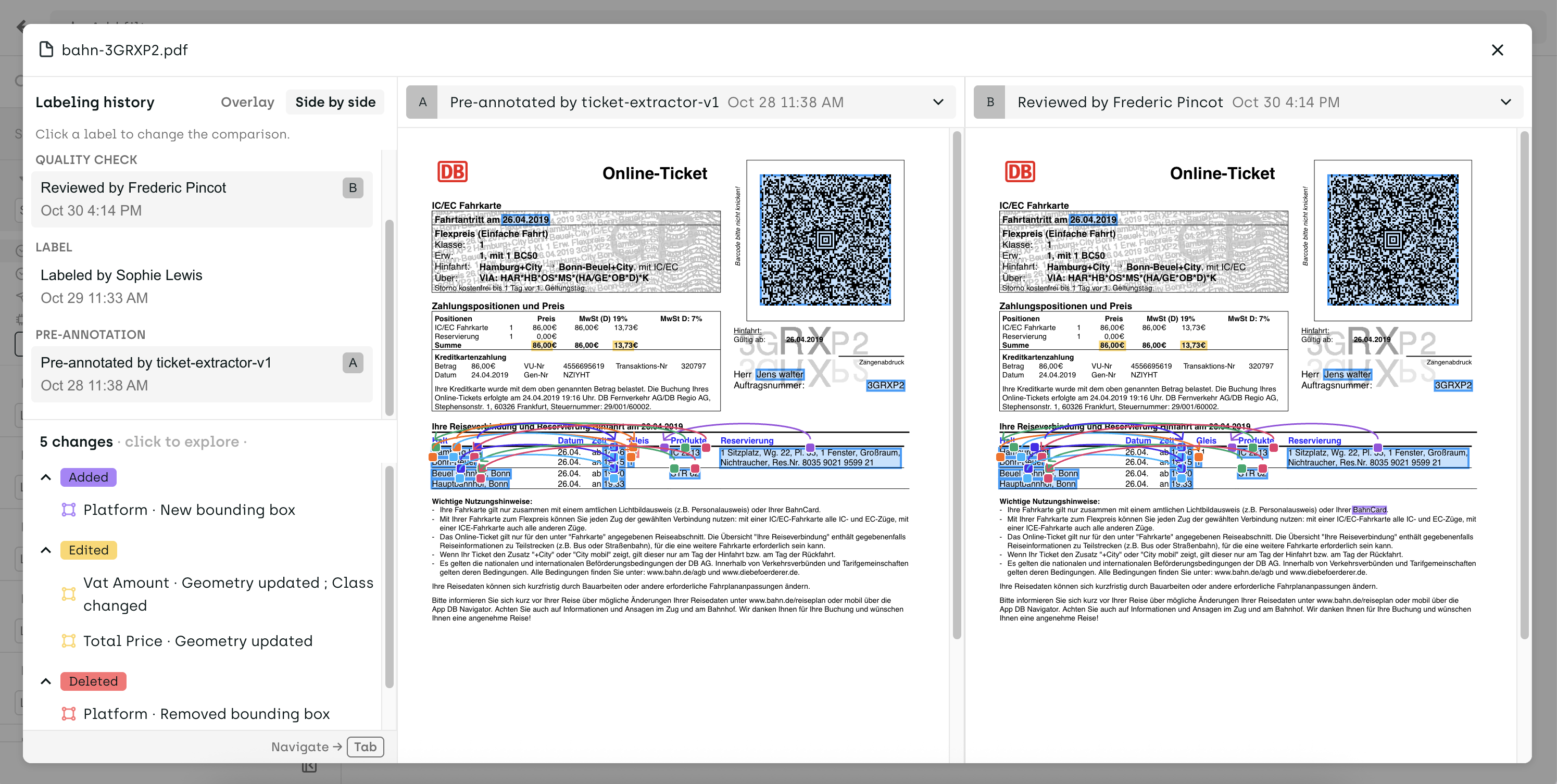
The Diff view in Side by side mode, comparing a pre-annotation (A) with the reviewed label (B). The change list groups the 5 changes as Added, Edited and Deleted.
Supported projects
| Asset type | Compared jobs |
|---|---|
| Geospatial | Bounding boxes, polygons, nested jobs, asset-level classification and transcription |
| Bounding boxes, polygons, named entities (NER), relations, nested jobs, asset-level classification and transcription |
Opening the Diff view
- In Explore, open an asset, then click Compare versions under the label list.
- The labeling history opens in the left column, with a pair of labels already selected.
By default, the Diff view compares the most recent label (B) with the previous one (A).
Choosing the labels to compare
In the labeling history, labels are grouped by workflow step (for example Review, Labeling and Pre-annotation), most recent first.
To compare two labels:
- Click a first label. It is marked as Selected.
- Click a second label to open the comparison.
- You can also change label A or B from the dropdown at the top of each pane.
A is always the older label and B the more recent one, whatever the click order. A and B badges show which labels are currently compared. To cancel a selection, click the selected label again.
Consensus labels are independent from one another, so they can't be compared annotation by annotation. Comparing a consensus label with another consensus label, or with a review label, isn't supported yet.
Reading the comparison
Display modes
- Side by side: label A and label B are shown in two panes. Both panes stay synced: panning, zooming and, for PDF, changing pages apply to both sides.
- Overlay: label B is shown on a single canvas, with changes highlighted. Press Space to toggle between A and B.
Change list
The change list, at the bottom of the left column, lists every difference between A and B, grouped by status: Added, Edited and Deleted. When asset-level jobs changed, an Asset-level group is pinned above them. The counter shows the total number of changes.
Select a change in the list, or an object on the canvas, to focus it in both panes.
Asset-level jobs
When the project has asset-level jobs (classification or transcription that apply to the whole asset), an Asset strip appears above the canvas in each pane. It lists only the jobs that differ, with each side's values. Values that are missing from the other side are highlighted and listed first. The strip is expanded when at least one job differs.
If a value is truncated, click … to see it in full. For nested jobs, click the N nested badge to see which sub-jobs changed.
In Overlay mode, a single strip shows each change as A value → B value.
Details panel
To see the full details of a change, select it in the change list and click Details, or click a row in the Asset strip. The panel shows the job, its change status and, for nested jobs, the path of each sub-job that differs (for example Vehicle: Car › Color: Red). Close it with X or Esc.
Tags and display settings
Annotation tags are shown on both canvases, as in the labeling interface. From the settings menu, you can adjust the Tags options and Objects opacity. These settings are shared with the labeling interface.
Press Tab to move to the next asset.
How changes are detected
Annotations are matched between A and B by their identifier. An annotation that was deleted and redrawn appears as one deletion and one addition, not as an edit.
| Job type | What is compared |
|---|---|
| Bounding box, polygon | Presence, category, geometry, nested jobs |
| Named entity (PDF) | Presence, category, text content, position (coordinates and page) |
| Relation (PDF) | Presence, category, start and end entities |
| Asset-level classification | Selected categories, nested sub-jobs |
| Asset-level transcription | Exact text |
An annotation can have several changes at once (for example, a new category and a new position). All of them are shown.
Limitations
- Page-level jobs in PDF projects aren't compared.
- The Diff view isn't available for assets labeled with consensus.
- Only PDF and Geospatial projects are supported. Support for Image and Text projects is coming soon.
Updated 3 days ago