
Flagging regions in review
Private betaFlagging regions is currently in private beta. It is available to selected customers on request, and it may change before general availability. To request access, contact your Kili representative.
Reviewers can already add free-text issues to a labeled asset. With flagging regions, a reviewer draws a box on the exact spot of a problem and describes it with options that a project admin defined in advance: a category, an optional follow-up question, and an optional note.
Because everyone picks from the same options, flags stay consistent from one reviewer to the next. Labelers see where to look and what to fix.
Flags are feedback, not labelsFlags are separate from annotations. They are not included in label exports and they do not count in quality metrics. The existing issues, on a whole asset or on a specific annotation, keep working as before.
Before you start
- Access: Kili enables the beta for your organization on request. Once it is enabled, Flagging options appears in the project settings menu.
- Project types: image and video projects.
- Roles: project admins set up the flagging options. Reviewers and admins flag regions. For details, see User roles in projects.
- Where flags are created: while reviewing a labeled asset, like any other issue. For the review flow, see Reviewing labeled assets.
Configuring flagging options
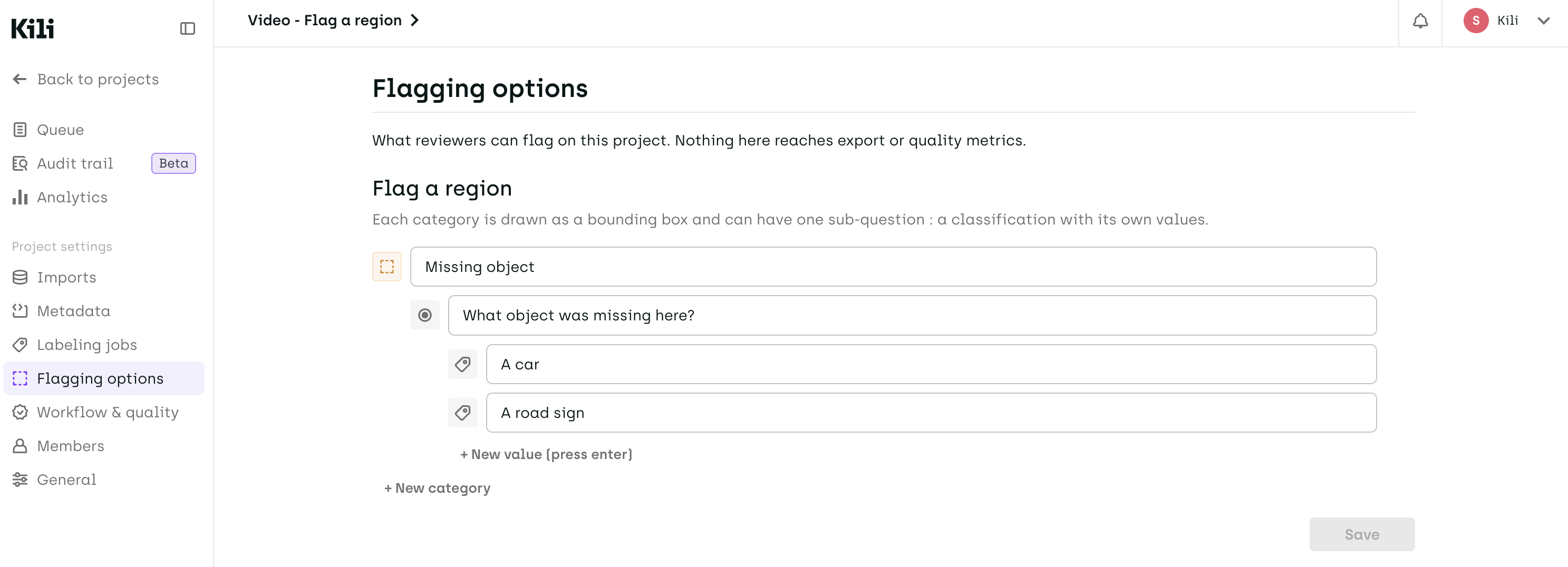
Flagging options
Flagging options define what reviewers can flag in a project. They are separate from your labeling ontology: changing them never changes your labeling jobs or existing annotations. Until you add at least one category, reviewers can only leave comments, as before.
To set up flagging options:
- Open your project and go to Settings > Flagging options.
- Click + Add a category. Name it after what the reviewer will flag, for example
Missing car. - Optional: to ask the reviewer one more question for this category, click + Sub-question. Name the question, for example
Severity, then add its values, such asHighandMedium, with + New value. - To add another category, click + New category.
- Click Save.
Limits
- A project can have up to 10 categories.
- A category can have one sub-question.
- Every category is drawn as a bounding box.
Flagging a region
On an image
-
Open a labeled asset in review.
-
In the toolbar, click Flag a region.

-
Draw a box around the area.
-
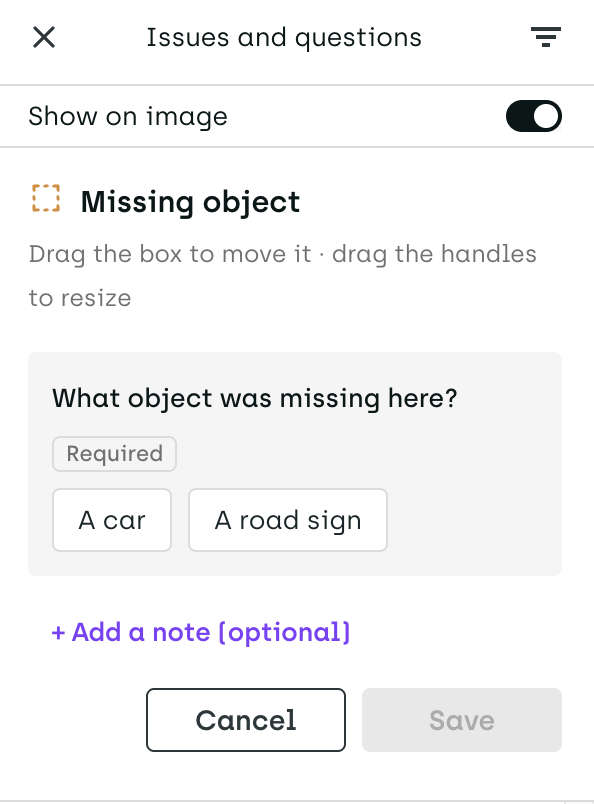
In the Issues & Questions panel, choose the category. If the category has a sub-question, answer it.
-
Optional: click + Add a note to add free text.
-
Click Save.
To cancel at any step, click Cancel or press Esc.
The flag appears in the Issues & Questions panel. Its box appears on the image as a dashed amber outline, so it cannot be mistaken for an annotation.
On a video
Follow the same steps, with these differences:
- The box is drawn on the frame you are on. By default, the flag covers that single frame.
- To cover more frames, drag the edge of the flag's marker in the Issues lane of the timeline.
- The box stays in the same place across the whole range. Kili does not track or interpolate it, and the Propagate option does not apply to flags.
Changing a flag
To change a flag, click Edit on its entry in the Issues & Questions panel. You can move or resize the box, change the category or the answers, and edit the note. Only the reviewer who created a flag can edit it.
Flagging does not replace free-text issues. To add a comment on a whole asset or on an annotation, use the Issues & Questions button as before. See Handling questions and issues.
What labelers see and how flags are resolved
When you are done flagging, click Send back. The asset re-appears in the labeler's queue and its status changes from Labeled to Ongoing, as for any issue.
The labeler opens the asset and sees each flag as a dashed amber box. Its category, answers and note appear in the Issues & Questions panel. The labeler fixes the problem by drawing or adjusting annotations. A flag box never becomes an annotation.
Labelers cannot resolve flags. After the labeler re-submits the asset, the reviewer checks the fix and resolves the flag by clicking the tick symbol (✓) next to it.
Limitations of the beta
The beta covers one kind of flag: a box drawn on a region of an image or of a video frame.
- Structured flags on an existing annotation or on a whole asset will be available soon. Use free-text issues for those.
- Flags that mark a single point, instead of a box, will be available soon.
- On a video, a flag has one static box across its frame range. There is no tracking or interpolation.
Sharing feedback
Your feedback shapes what comes next. Tell your Kili representative what works, what is missing and what is confusing, especially the categories you set up and how labelers use the flags.
Related pages
Updated about 18 hours ago