
March 25th, 2026
Changelog (26.1.27)
New
Map View for Geospatial Projects - General Availability
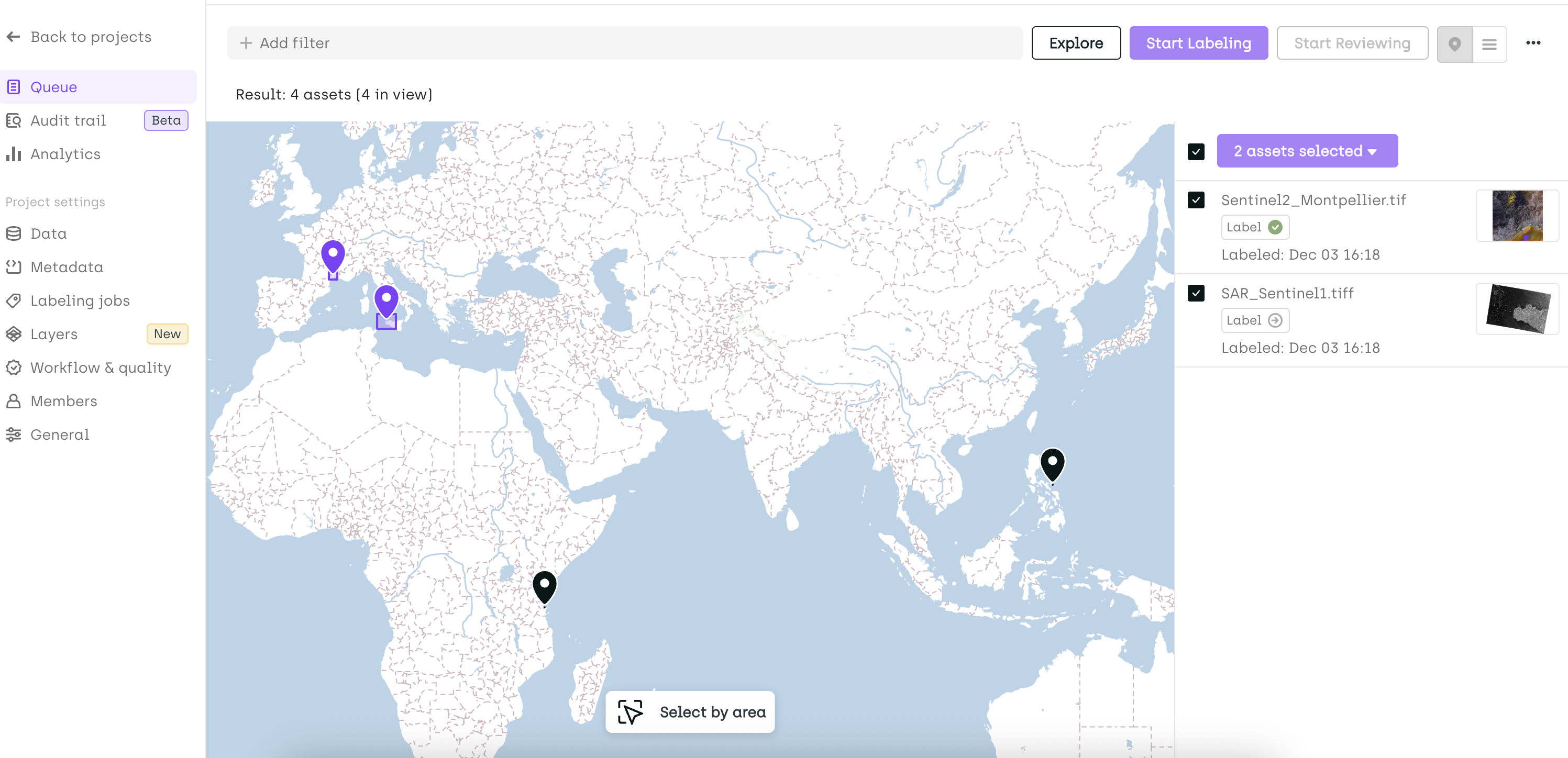
A new Map View is now available in Geospatial projects.
From the Queue page, Admins and Team Managers can switch from the list view to a map-based interface. Assets are displayed geographically using their image bounds, making it easier to explore and manage data spatially.
From this view, you can:
- Select assets directly on the map based on their location
- Perform bulk actions such as:
- Assign to users
- Add to Review / Send back to Queue
- Prioritize assets
Built-in Base Map
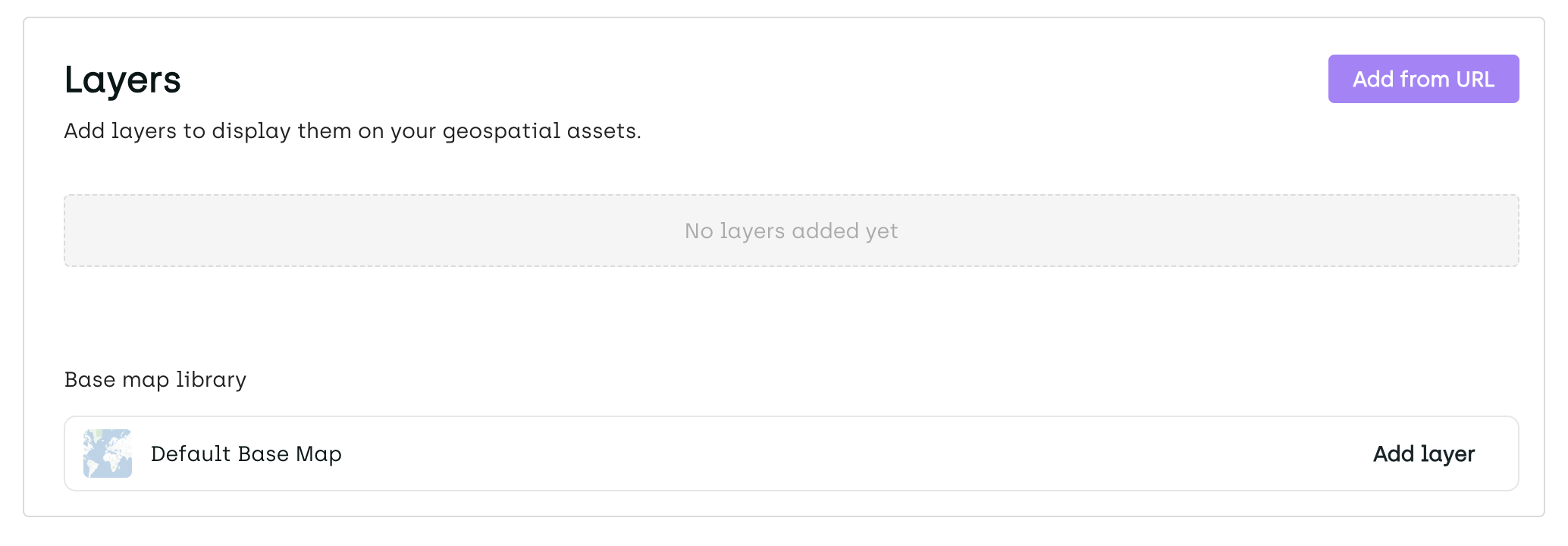
With the new Map View, we are also introducing a built-in Base Map, available across all Geospatial projects.
You can enable it directly from the Layers menu to provide geographic context when visualizing your assets.
Important: When a Base Map is enabled, the default coordinate reference system (CRS) for image display is EPSG:3857. If you switch to a different CRS from the labeling interface, the Base Map layer will be hidden.
Honeypot Metric in Multi-Review Workflows
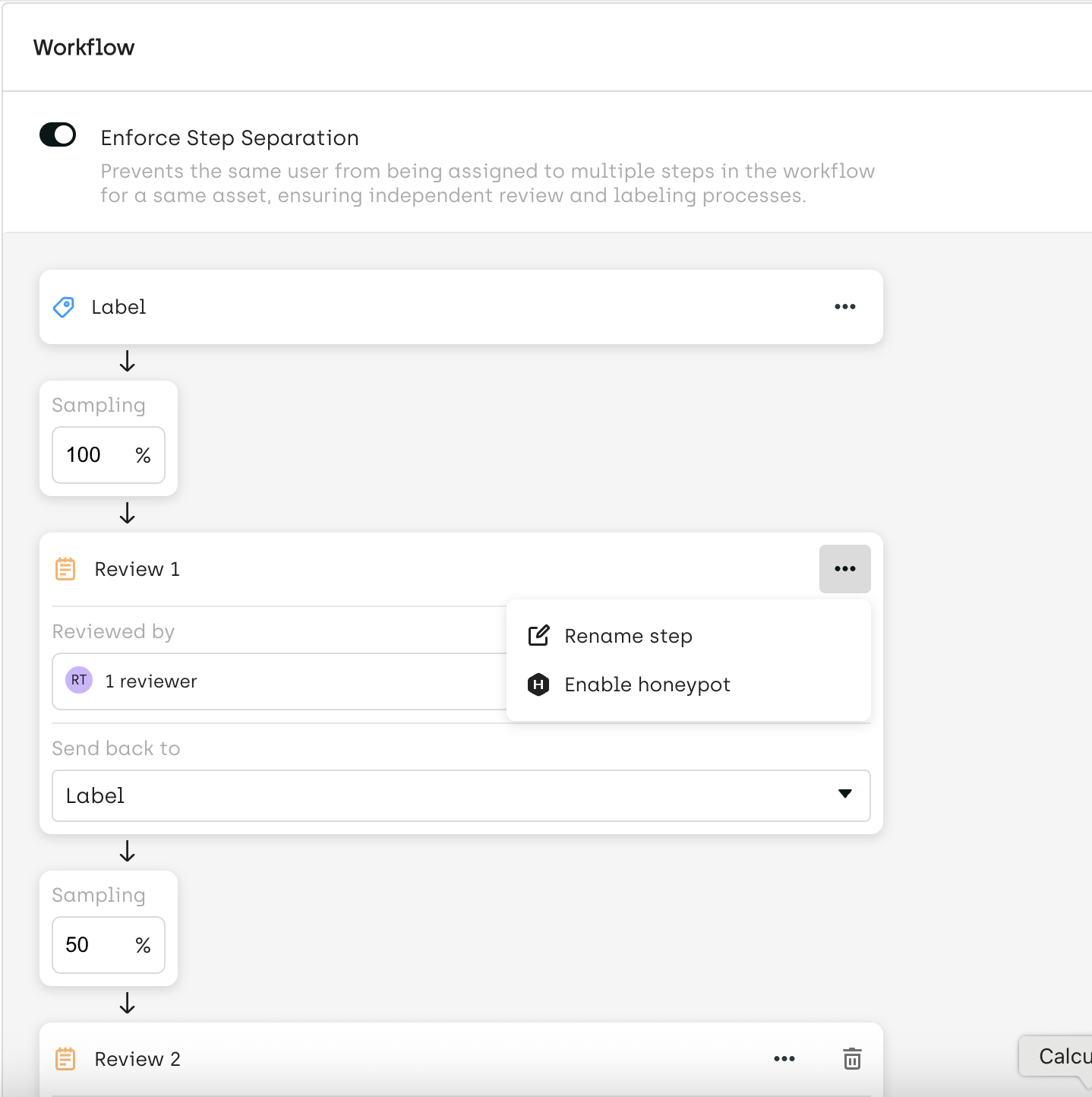
The Honeypot metric is now supported in Multi-Review workflows. Honeypot allows you to evaluate human annotations against predefined ground truth data to measure quality.
You can:
- Enable Honeypot on a specific step via the Workflow Editor
- Upload Honeypot labels as ground truth on selected assets using the SDK method
kili.create_honeypot - Automatically compute the Honeypot metric when a label is submitted at the configured step
Note: Honeypot metrics, and related data are only accessible to Project Admins and Team Managers.
More details are available here
Change
Improved CRS Visibility in Geospatial Projects
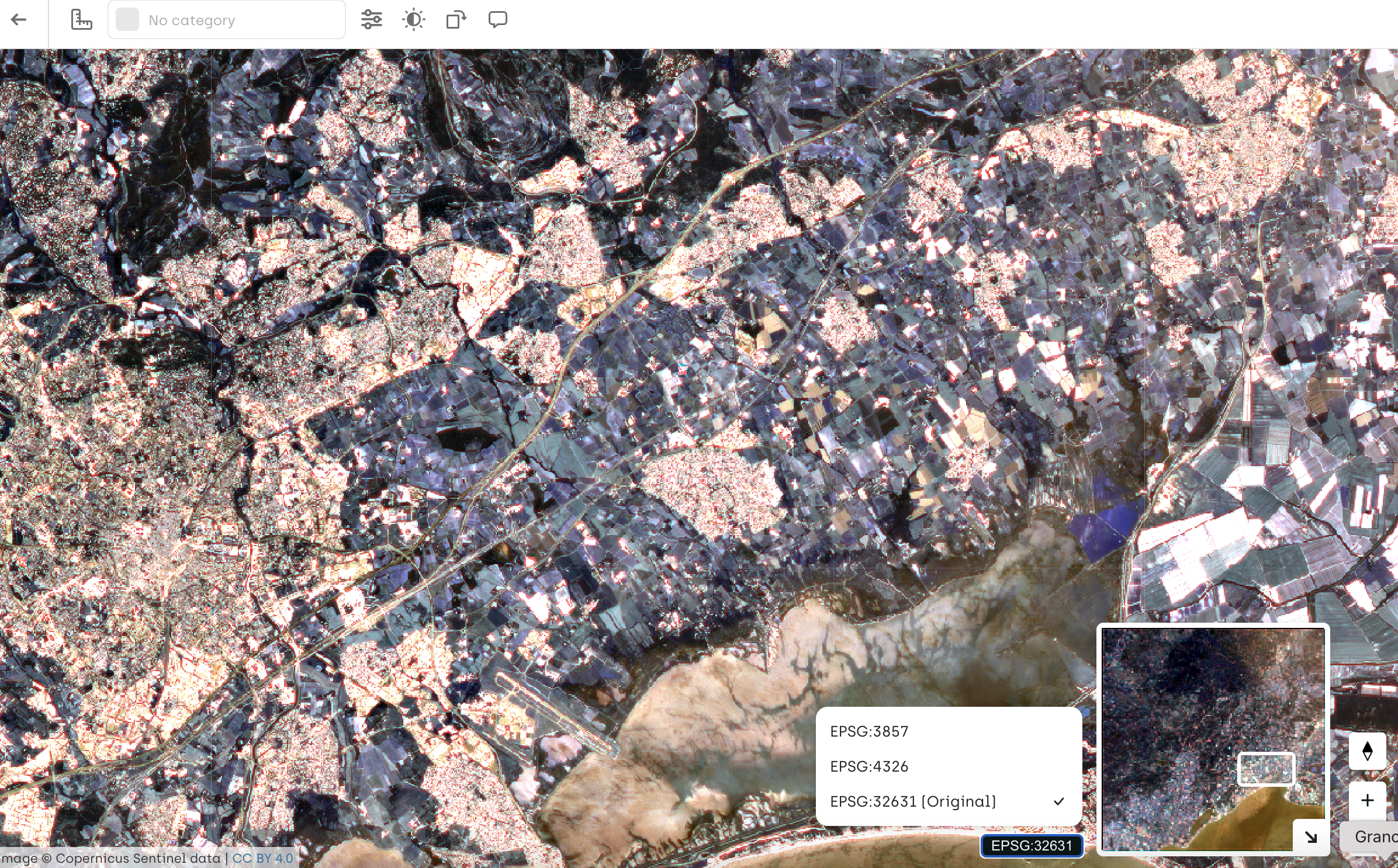
The Coordinate Reference System (CRS) used to display assets is now directly visible within the labeling interface.
This makes it easier for users to:
- Quickly identify the current CRS in use
- Seamlessly switch to another CRS when needed
This improvement enhances transparency and reduces confusion when working with geospatial data across different projections.
Improved Issue Filtering & Resolution Logic
We’ve enhanced the Issues panel to make collaboration between reviewers clearer and more efficient.
- A default filter is now applied to highlight issues assigned to the author of the label currently being viewed, helping users focus on the most relevant feedback.
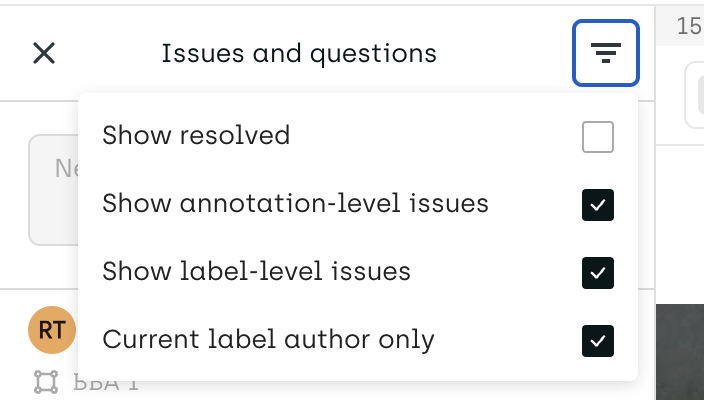
- The auto-resolution behavior has been refined: when a reviewer clicks Review, only the issues they created are automatically closed.
This ensures that issues raised by other reviewers remain open, improving visibility and coordination in multi-review workflows.
Improved Read-Only Mode UI (Job Viewer)
The Job Viewer (right panel in the labeling interface) has been updated to better reflect read-only mode. Items are now displayed with increased transparency, making it clearer which elements are not editable.
Fix
- Fixed an issue where the playback speed panel in the Video UI would reopen while the video was playing after changing the speed.
- Disabled the right-click menu while editing a semantic object to prevent unintended actions and side effects.
- Fixed an issue causing the organization members list to refresh continuously.