---
updatedAt: 2026-11-03T16:47:02.000Z
agentTools:
projectIndex: https://docs.kili-technology.com/llms.txt
---
# Adjusting your labeling environment
Icons located in the top-left corner of the labeling interface control the labeling environment.
The available controls are:
* Current asset magnification (zoom level)
* Asset display settings: asset brightness, asset contrast, and asset opacity
* Annotation display settings
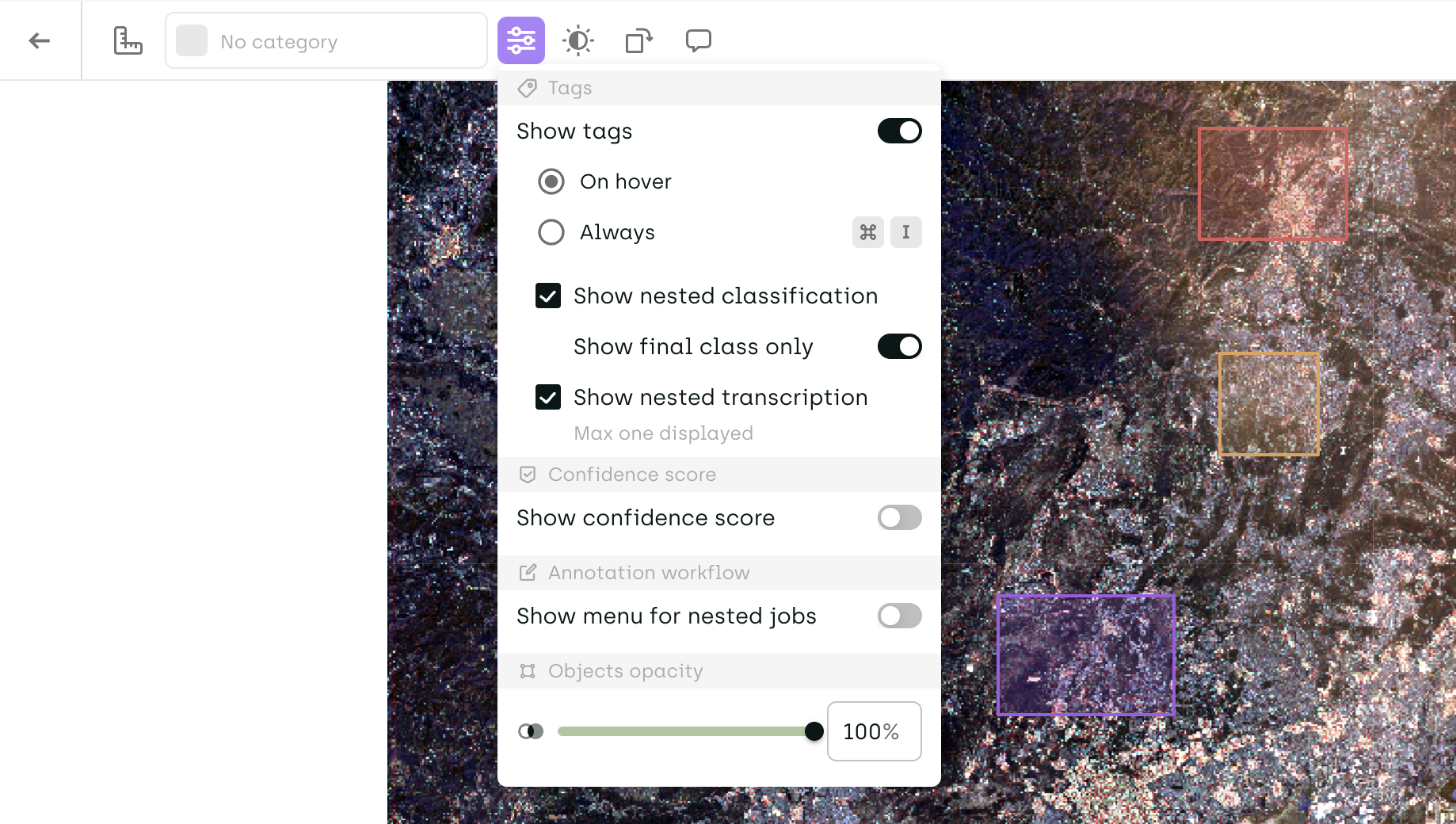
In the annotation display settings, you can control:
* The visibility of annotation tags
* Whether tags of nested classification jobs show only the final class (**Show final class only**), instead of the full path
* Whether nested classification jobs, and nested transcription jobs are shown in the asset viewer
* Whether relations are shown in the asset viewer
* Whether confidence scores are shown at object level
* Annotation opacity
In Text projects, you can also adjust text size and line height. One of the potential uses is increasing the line height and activating annotation tags, without having them overlap with the content.
## Learn more
For information on how to adjust annotation colors and shortcuts, refer to [Customizing project interface](https://docs.kili-technology.com/docs/customizing-project-interface#customizing-interface).